



@sly.automation osrs botting functions with python #osrs #botting #python
♬ original sound sly automation
This article covers what to expect in the setting up for osrs bot automation functions for Old School RuneScape (OSRS) using Python.
here’s my github source: https://github.com/slyautomation/osrs_basic_botting_functions/
If you need help setting up Python or PyCharm before starting, check out our setup guide here:
👉 Install PyCharm and Python + Clone a GitHub Project
System Setup
Display Settings
Before running any scripts, set your monitor resolution to 1920×1080 and text scaling to 100% for consistent image recognition.
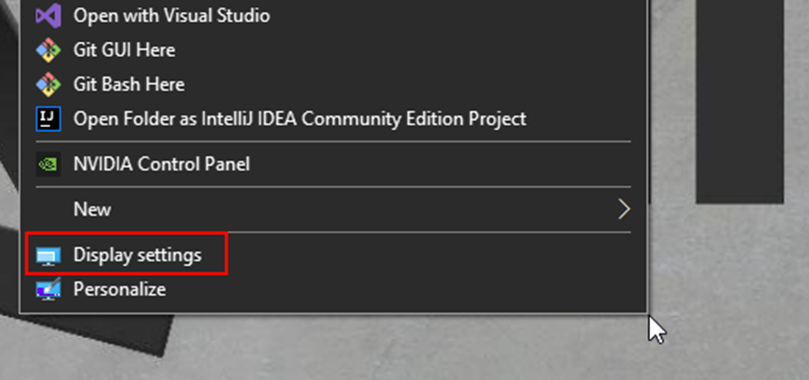
- Right-click your desktop → Display Settings
- Under Scale and Layout, set:
- Display Resolution: 1920 × 1080
- Scale: 100%

Installing PyCharm
Follow these steps to install and set up PyCharm for Python scripting:
- Download and install PyCharm Community Edition
- Open PyCharm and create a new project
- Make sure your virtual environment (venv) is active
- Add the project files (
core.py,functions.py, etc.)
Installing Dependencies
Open your terminal in PyCharm and run:
pip install -r requirements.txt
Tesseract OCR
Download and install Tesseract OCR for image-to-text recognition:
- Latest version: University Mannheim Mirror
- Alternative links:
RuneLite Client Setup
- Uncheck Transparent Side Panels and Chatbox Transparency
- Enable the Toolbar on the right-hand side
- In settings, disable Show display name title under RuneLite Plugin
- Set Display Mode: Resizable – Modern Layout
- Enable Hide Roofs and Shift-click to Drop Items under Controls
- Set the Inventory Shortcut to
ESC
Recommended Interface Settings
- Overlay Color: Standard brown (#FF463D32)
- Interface Font: Bold
- Opacity: 255
- Data Orbs: Enabled
Config File Setup (pybot-config.yaml)
client_title: RuneLite
enable_on_start: false
file_path_to_client: C:\Users\<username>\.runelite
pc_profile: <your_pc_profile>
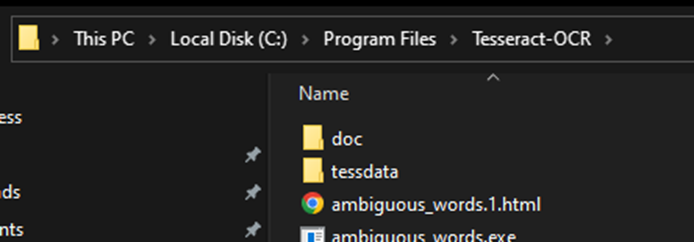
tesseract_path: C:\Program Files\Tesseract-OCR\tesseract.exe
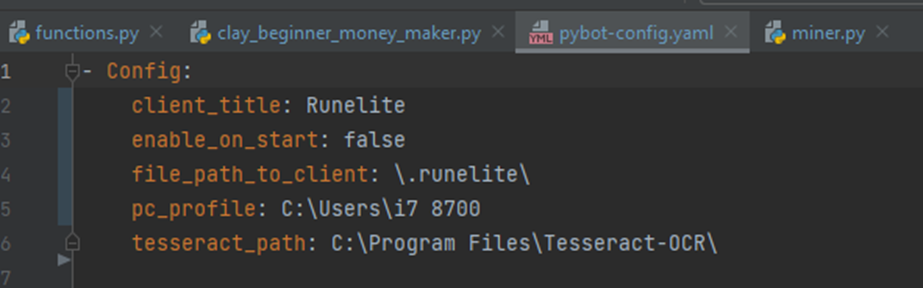
Ensure the folder paths and slashes (\) match your system.
client_title: Is the title of the application window usually Runelite if you have completed the steps for the Runelite Setup, if not then enter RuneLite – username or OpenOSRS


To disable the username in the client window using the toolbar search for runelite plugin and in the settings make sure ‘Show display name title’ is unchecked.
enable_on_start: if you don’t want the config window to pop up each time, enter as false
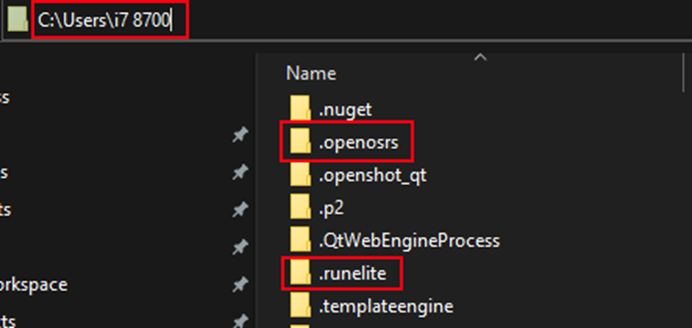
file_path_to_client: the head folder where the OSRS client is stored usually .runelite or .openosrs
pc_profile: is the user profile of the pc so it can find runelite or openosrs
tesseract_path: Is the folder address to tesseract-ocr program
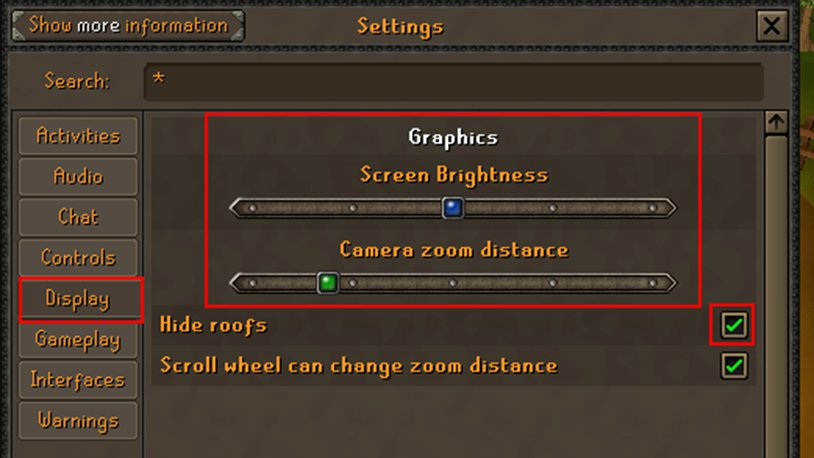
In Runescape setting, set the following:
Ideally under display, enable hide roofs, camera zoom, screen brightness matching below.
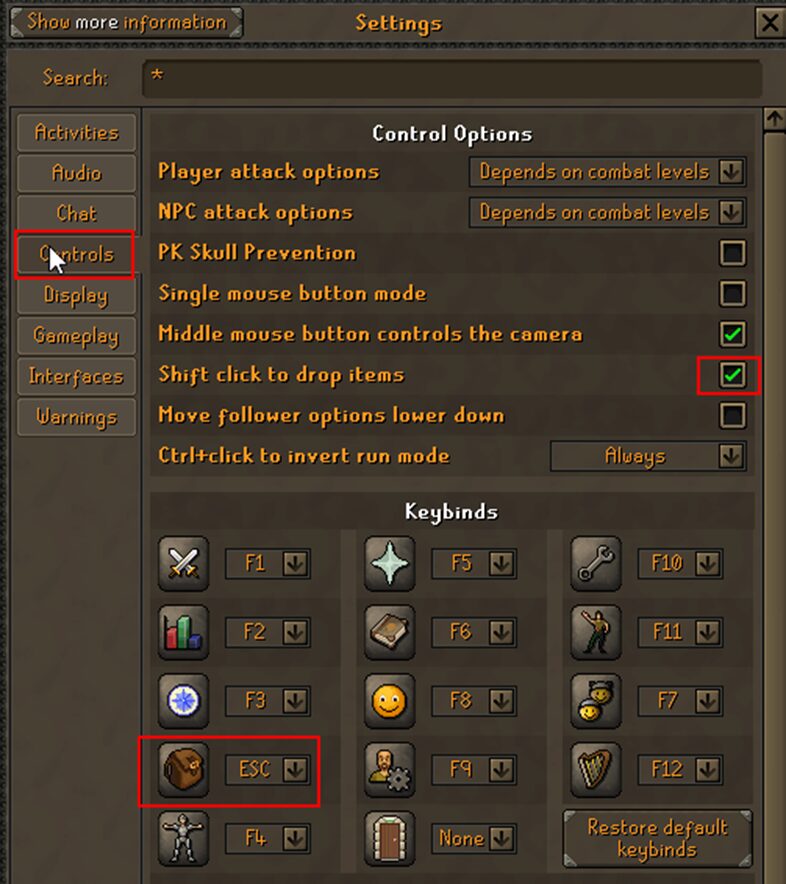
Under controls, enable shift click to drop items, and set inventory shortcut to ESC keystroke.
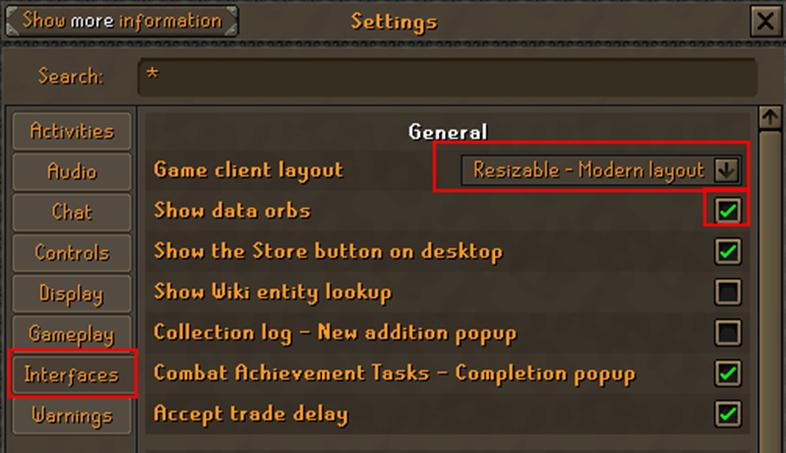
Under Interfaces ensure Game Client layout is Resizable – Modern Layout
Show data orbs enabled
Make sure the info boxes are filled and the standard brown color, use the toolbar and search Runelite. In the settings under overlay section select the ‘Overlay color’.
Change Interface font to ‘Bold’. Change Infobox font to ‘Bold’. Change opacity to 255 and the hex color to #FF463D32:
Bot Function Modules
Each skill uses a dedicated Python script module that leverages color detection, tagging, and in-game plugins.
The below section is a list of functions that can eventually be made with python but first we’ll need to setup the python project and understand how to make core scripts and functions in order to make these scripts work, here’s an article that helps with that framework: https://www.slyautomation.com/blog/osrs-botting-project/
Woodcutting
Features:
- Cuts trees and lights fires automatically
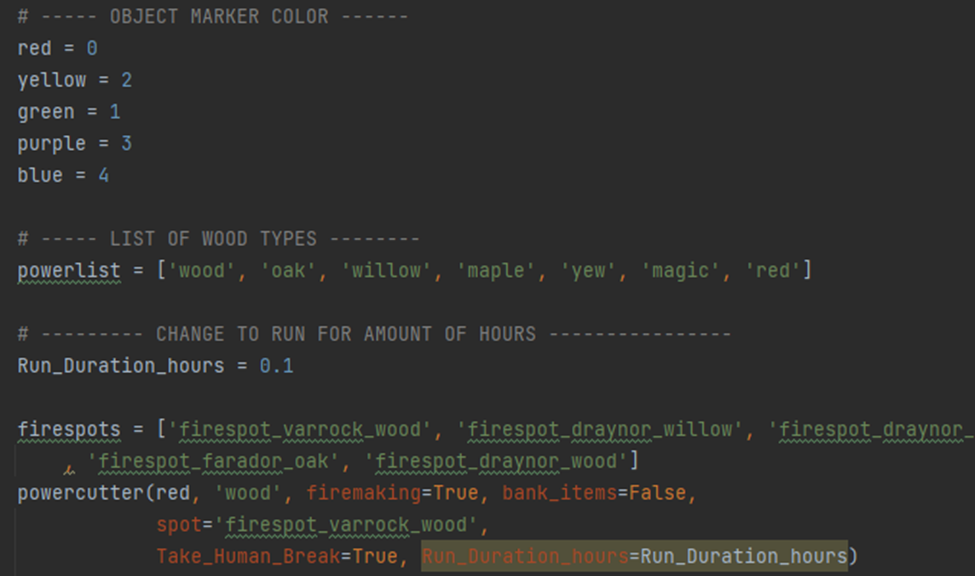
- Uses object marker plugin for color tagging (red, green, yellow)
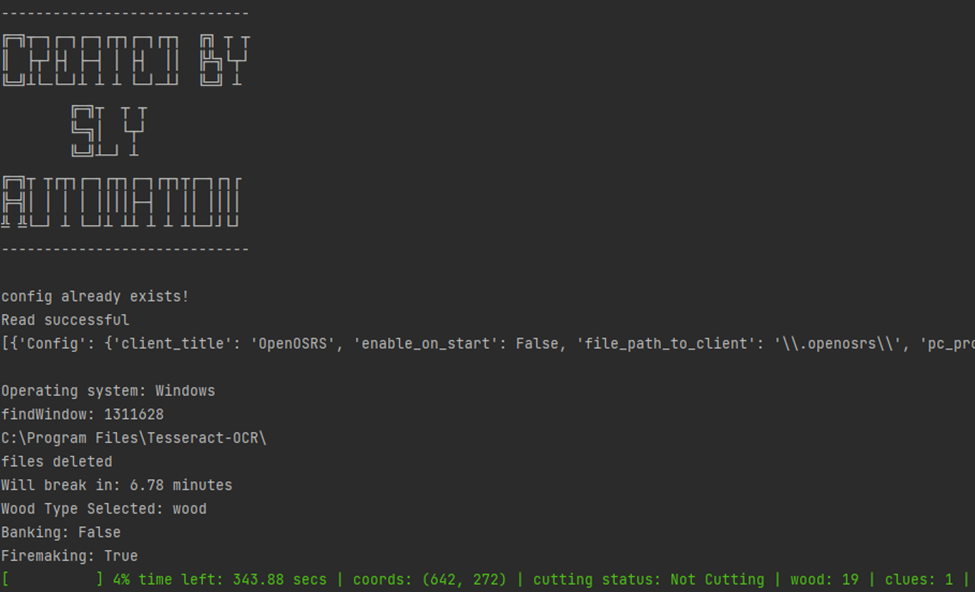
Pick a object marker color, a wood type and how long in hours to run for
Requirements:
- Axe equipped
- Tinderbox (for firemaking)
- Woodcutting plugin enabled
👉 Firemaking tutorial link: Coming soon
Fishing
Setup:
- Enable Fishing Plugin
- Equip correct gear (net, rod, bait, or feathers)
👉 Fishing tutorial: Coming soon
Mining
Setup:
- Enable Mining Plugin
- Tag ore spots with green markers
- Equip pickaxe
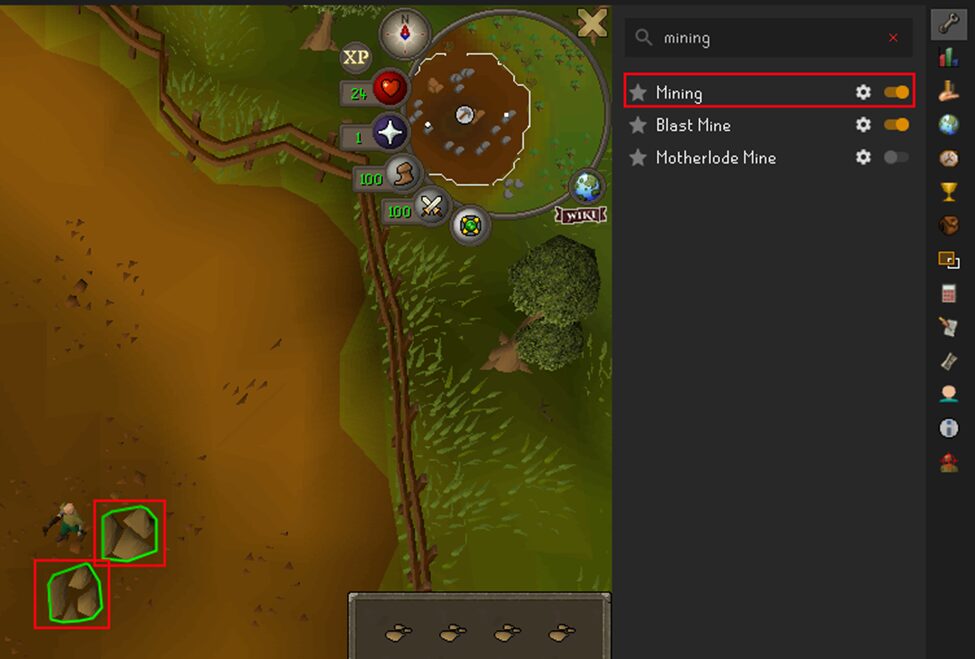
In mining.py, configure:
Run_Duration_hours = 2
Ore_Type = "Iron"
Marker_Color = "Green"
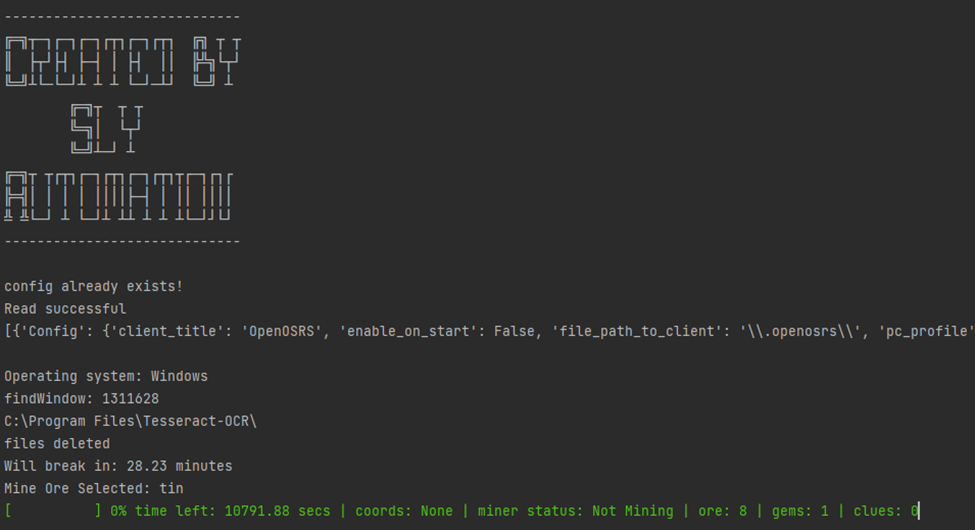
👉 Mining tutorial: Coming soon
Combat
Setup:
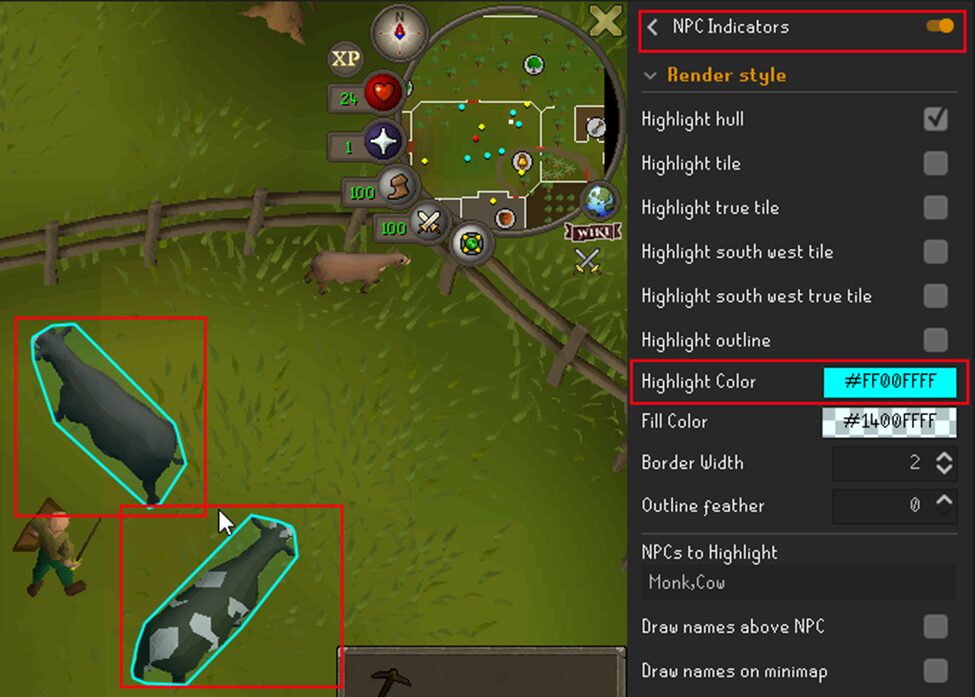
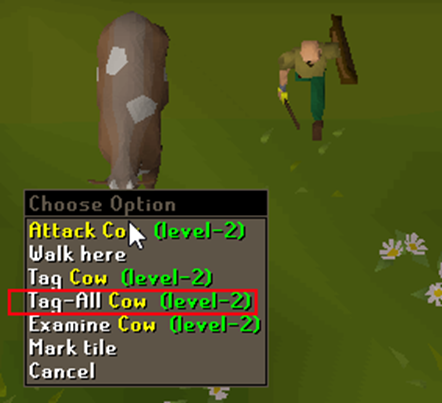
- Enable NPC Indicators and Opponent Information plugins
- Tag NPCs with Shift + Right-click → Tag-All
- Use highlight color:
#ff00ffff
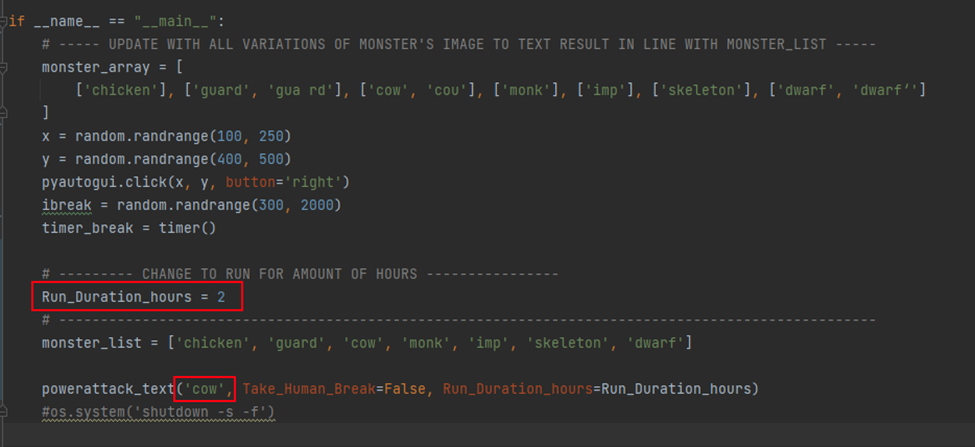
In combat.py, set:
NPC_Name = "Cow"
Run_Duration_hours = 3
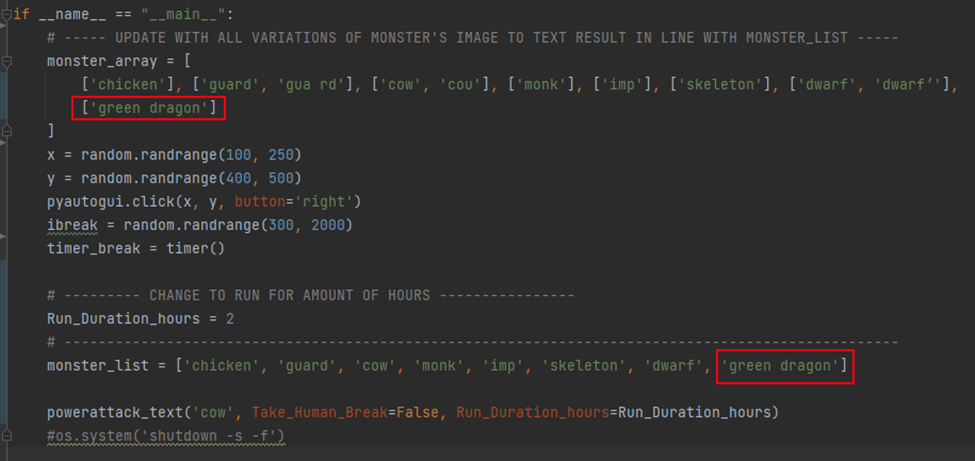
To add or use a NPC/Mob not on the list add it to the monster_array as [‘each iteration captured by the combat_text’] and add to monster_list the name
🎥 Watch full tutorial: Coming Soon
Thieving
Functions:
steal_man()– Works for knights, goblins, and thievessteal_tea()– Use with marked Tea Stall (red)
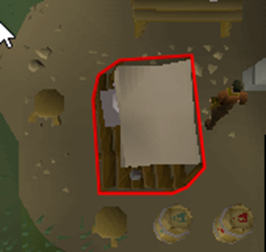
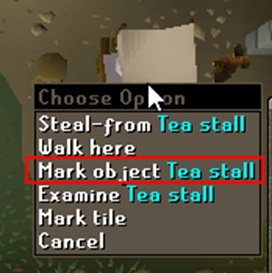
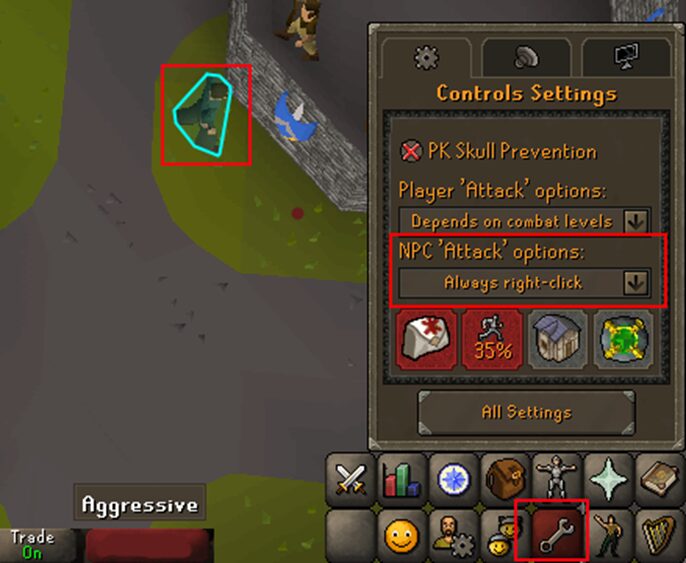
Make sure pickpocket will be actioned on left click (some npcs even on always right click have ‘talk to’ as left click option)

Tips:
- Enable NPC Indicators
- Highlight color:
#ff00ffff - Hold Caps Lock to stop script
⚠️ Add safety feature to eat or stop when health is low (future update)
Clay Money Maker
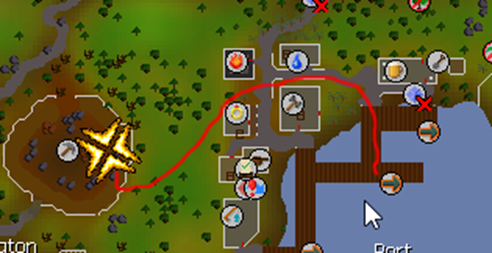
Location: Rimmington Mine → Port Sarim Deposit Box
Setup:
- Set compass due north
- Enable Mining Plugin
- Mark clay spots (green) and deposit box (red)
- Run
clay_beginner_money_maker.py
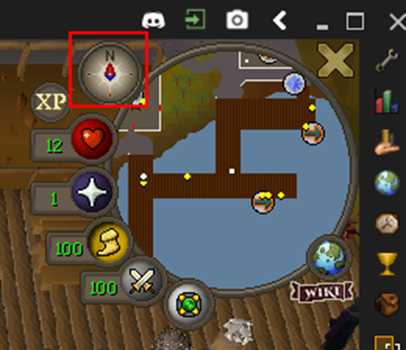

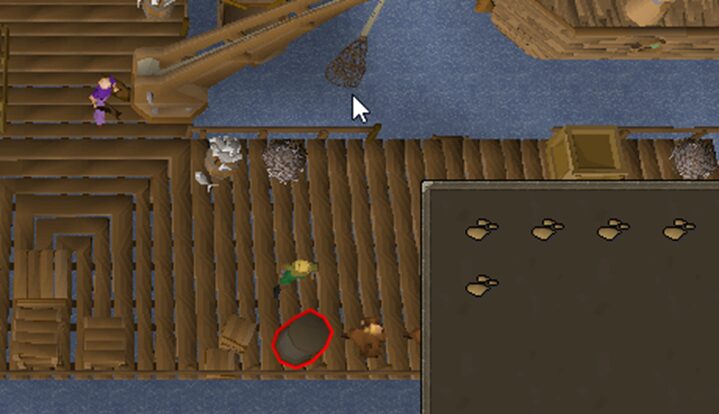
This is the path that is takes:
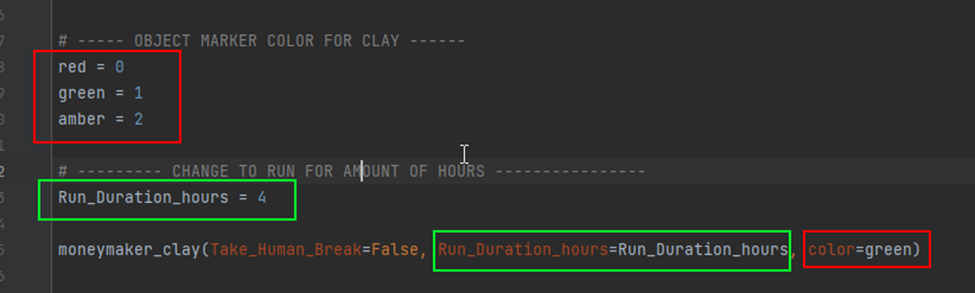
Make sure to select the color that you highlighted the clay ores and set the Run Duration to the number of hours:
Smithing
- Script:
smithing.py - Automates anvil interactions and item creation
👉 Tutorial link: Coming soon
Magic
Features:
- High Alchemy
- Superheat Item
👉 Magic tutorial: Coming soon
OSRS Walker
Automated walking script using RuneLite coordinate tracking.
Setup:
- Add the following plugins:
httpplug-1.0.3.jarshortestagility-5.0.2.jar
(Place inC:\Users\<username>\.openosrs\plugins)
- Create
paths.txton desktop - Set path targets in-game